
Have you ever opened your website to see a list of files and folders instead of your beautiful homepage? If so, you’ve encountered the dreaded “index of /” message. But relax, this doesn’t necessarily mean your website is broken, and it’s definitely fixable!
In the Philippines, where online businesses are flourishing, having a professional and functional website is crucial. Many Filipino entrepreneurs rely on web hosting Philippines and cPanel hosting providers for technical support. However, even with their expertise, technical hiccups can still arise.
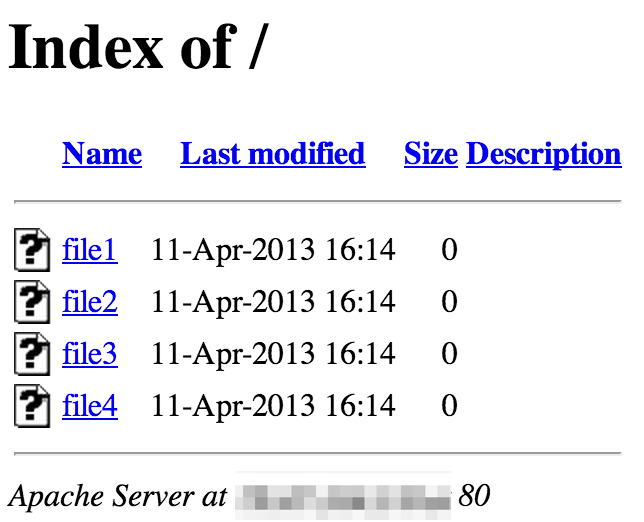
What Exactly is “index of /”?
Think of your website as a house. The “index of /” message is basically seeing a list of all the rooms (files and folders) in the house instead of the welcoming living room (homepage) you expect. This happens when the web server can’t find the specific “index” file, usually named “index.html”, which tells it what to display first.
Why is this a Problem?
While not inherently harmful, seeing “index of /” isn’t ideal for several reasons:
- Poor User Experience: Visitors expect a visually appealing homepage, not a technical file listing. This can be confusing and discourage them from exploring your website further.
- Potential Security Concerns: In some cases, the directory listing might reveal sensitive information about your website, like hidden files or software versions. This could make your website vulnerable to attacks.
How to Fix It: Two Simple Solutions
There are two main ways to tackle this issue:
1. Create an “index.html” File:
- Using a Website Builder: Most website builders offer user-friendly interfaces for creating and editing web pages. Simply follow their instructions to create a new page and designate it as your “index” page.
- Creating it Manually: Use a text editor like Notepad or TextEdit to create a file named “index.html” and add the HTML code for your desired website content. Then, upload this file to your website’s root directory using an FTP client or your web hosting provider’s file management tool.
2. Check Your Website Configuration:
- Contact your Web Hosting Provider: They can guide you on how to modify your website’s configuration to ensure the “index.html” file is displayed by default.
- Consult Your CMS Documentation: If you use a Content Management System (CMS) like WordPress, their official documentation often details managing default files and website settings.
Remember: If you’re not comfortable making edits or changes, it’s always best to seek help from your web developer or web hosting provider‘s support team. Don’t forget to back up your website files and database before making any changes!
By following these steps, you can banish the “index of /” message and have your website welcoming visitors with a polished homepage once again!